
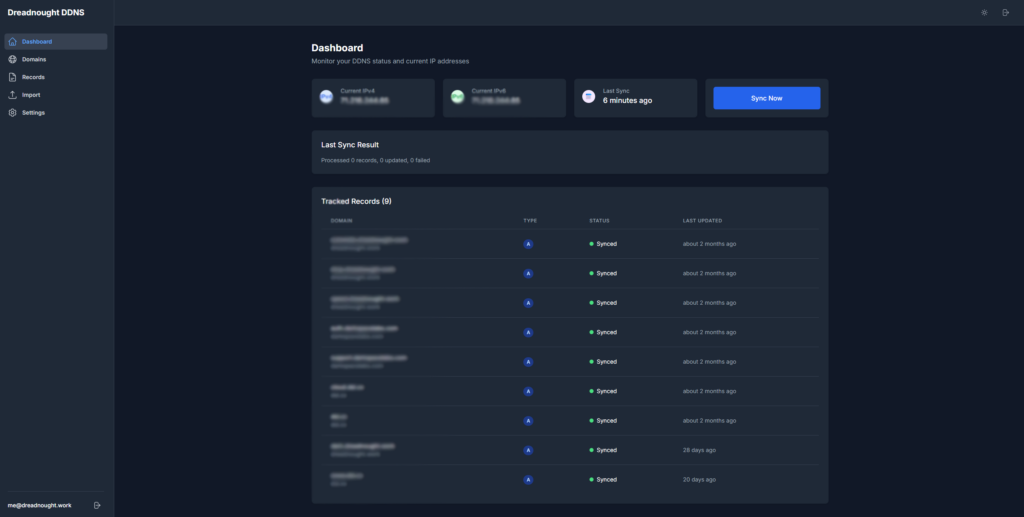
A production-ready, self-hosted Dynamic DNS (DDNS) manager for Cloudflare that automatically updates DNS A/AAAA records when your public IP address changes.
Features
- Automatic IP Detection: Monitors IPv4 and IPv6 addresses at configurable intervals
- Immediate Updates: Manual updates via web UI are synced immediately to Cloudflare
- Clean Web Interface: Modern React/Next.js UI with Tailwind CSS styling
- Secure Authentication: Local email/password authentication with session management
- Rate Limit Handling: Intelligent backoff and retry logic for Cloudflare API calls
- Import Support: Bulk import DNS records from legacy JSON format
- Audit Logging: Complete activity tracking and history
- Docker Deployment: One-command deployment with docker-compose
- Proxied Record Support: Full support for Cloudflare’s proxy features with automatic TTL handling
Architecture
- Frontend: Next.js 14 (App Router) + TypeScript + Tailwind CSS
- Backend API: FastAPI (Python 3.12) + SQLAlchemy + Pydantic
- Worker Process: APScheduler for periodic IP monitoring and sync
- Database: SQLite with persistent volume storage
- Authentication: Session-based with HttpOnly cookies and CSRF protection
Quick Start
Prerequisites
- Docker and Docker Compose
- Cloudflare account with API token
1. Get Cloudflare API Token
- Go to Cloudflare API Tokens
- Create a new token with these permissions:
- Zone:Zone:Read (for all zones or specific zones)
- Zone:DNS:Edit (for all zones or specific zones)
- Copy the token – you’ll need it for the next step
2. Set Up Environment
# Clone the repository
git clone <repository-url>
cd Dreadnought-DDNS

# Copy environment template
cp .env.sample .env

# Edit .env with your settings
nano .env
Required environment variables:
# Cloudflare API Token - REQUIRED
CF_API_TOKEN=your_cloudflare_api_token_here

# Admin credentials for initial login
ADMIN_EMAIL=admin@local
ADMIN_PASSWORD=ChangeMe!

# Security - Generate a secure random key
SECRET_KEY=your-super-secret-key-change-in-production

# Worker settings
POLL_INTERVAL_SECONDS=300
IPV6_ENABLED=true

# Optional Discord notifications
DISCORD_WEBHOOK_URL=
3. Run Setup Script (Important for Raspberry Pi)
# Make the setup script executable
chmod +x setup.sh

# Run the setup script - this creates the data directory with proper permissions
./setup.sh
Note for Raspberry Pi users: The setup script is required to avoid database permission errors.
4. Deploy
# Start all services
docker compose up -d

# Check status
docker compose ps

# View logs
docker compose logs -f
The application will be available at:
- Web UI: http://localhost:8082
- API: http://localhost:8081
4. Initial Setup
- Open http://localhost:8082 in your browser
- Login with the admin credentials from your
.envfile - Add your first DNS records in the Records tab
- Configure settings in the Settings tab
Configuration
Environment Variables
| Variable | Default | Description |
|---|---|---|
CF_API_TOKEN | required | Cloudflare API token with Zone:Zone:Read and Zone:DNS:Edit permissions |
ADMIN_EMAIL | admin@local | Initial admin user email |
ADMIN_PASSWORD | ChangeMe! | Initial admin user password |
SECRET_KEY | generate | Secret key for session signing (use a strong random value) |
POLL_INTERVAL_SECONDS | 300 | How often to check for IP changes (60-3600 seconds) |
IPV6_ENABLED | true | Enable IPv6 support |
DISCORD_WEBHOOK_URL | (empty) | Optional Discord webhook for notifications |
Cloudflare API Token Permissions
For security best practices, create a token with minimal required permissions:
- Zone:Zone:Read – Required to resolve domain names to zone IDs
- Zone:DNS:Edit – Required to create/update/delete DNS records
You can scope the token to specific zones rather than all zones for better security.
DNS Record Configuration
Record Types
- A Records: IPv4 addresses (automatically uses current IPv4)
- AAAA Records: IPv6 addresses (automatically uses current IPv6)
TTL Behavior
- Normal Records: Use the TTL value you specify (1-86400 seconds)
- Proxied Records: TTL is automatically set to “Auto” (300s) by Cloudflare
- TTL = 1: Represents “Auto” in Cloudflare’s system
Proxied Records
When a record is marked as “proxied”:
- Traffic routes through Cloudflare’s proxy
- TTL is forced to “Auto” regardless of your setting
- Additional Cloudflare features (caching, security, etc.) are enabled
Usage
Adding DNS Records
- Go to the Records tab
- Click Add Record
- Fill in the form:
- Domain: The zone name (e.g.,
example.com) - FQDN: Full hostname (e.g.,
vpn.example.com) - Type: A (IPv4) or AAAA (IPv6)
- Proxied: Enable Cloudflare proxy (optional)
- TTL: Time to live in seconds (ignored if proxied)
- Domain: The zone name (e.g.,
- Click Create
The record will be immediately synced to Cloudflare using your current IP address.
Importing Legacy Records
If you have existing DNS records in JSON format:
- Go to the Import tab
- Paste your JSON data (see format below)
- Use Preview Import to validate
- Uncheck “Dry run” and click Import Records
Import JSON Format
[
  {
    "domain": "example.com",
    "host": "vpn",
    "ip_version": 4,
    "ttl": 300,
    "proxied": false
  },
  {
    "domain": "example.com",
    "host": "@",
    "ip_version": 4,
    "ttl": 300,
    "proxied": true
  }
]
host: Use"@"for the root domain, or subdomain nameip_version:4for A records,6for AAAA recordsttl: TTL in seconds (use1for Auto)proxied: Enable Cloudflare proxy
Troubleshooting
Common Issues
“Unable to open database file” (Raspberry Pi / Linux)
Error Message:
sqlite3.OperationalError: unable to open database file
Solution: This happens when the ./data directory doesn’t exist or has incorrect permissions.
# Stop containers
docker compose down

# Create data directory with proper permissions
mkdir -p ./data
chmod 777 ./data

# Or run the setup script
chmod +x setup.sh
./setup.sh

# Restart containers
docker compose up -d
Root Cause: The Docker containers need write access to the ./data directory to create and modify the SQLite database. The setup script handles this automatically.
“Failed to resolve zone_id for domain”
- Verify your Cloudflare API token has Zone:Zone:Read permission
- Ensure the domain is added to your Cloudflare account
- Check that the domain spelling is correct
“Rate limit exceeded”
- The system handles rate limits automatically with exponential backoff
- If persistent, consider increasing
POLL_INTERVAL_SECONDS - Check for other applications using the same API token
“CNAME record exists, cannot create A/AAAA record”
- DNS rules prevent A/AAAA records on names with CNAME records
- Remove the CNAME record first, or use a different hostname
Container shows “unhealthy”
Check logs:
docker compose logs api web worker
Common fixes:
# Restart specific container
docker compose restart web

# Restart all containers
docker compose restart

# Rebuild and restart
docker compose up -d --build
Security Considerations
API Token Security
- Store your Cloudflare API token securely
- Use the principle of least privilege (limit token scope to required zones)
- Rotate tokens periodically
- Never commit tokens to version control
Session Security
- Sessions use HttpOnly cookies with SameSite=strict
- CSRF protection on all state-changing operations
- Automatic session expiration (30 minutes)
Running Tests
cd backend
pip install -r requirements.txt
pytest
License
This project is licensed under the MIT License.
Support
For issues, questions, or contributions, please visit the GitHub repository.